If you’re trying to figure out how to uninstall Genshin Impact without leaving a mess behind, doing it the right way actually matters more than you might think. In 2026, the PC version can easily take up 50 to 70 GB depending on your graphics settings, installed voice packs, and how much old patch data has piled up over time. On mobile, it’s not unusual to see the game push past 20 GB after a few major updates. Whether you need the space back, want a clean reinstall to deal with stutter or shader issues, or just need to remove the game from a shared device, the steps are a bit different on PC, mobile, and PlayStation. This guide walks through all three and also covers the leftover files that often stick around after the game looks “gone.”
How to Uninstall Genshin Impact Safely
Before you remove anything, the big thing to know is this: your Genshin Impact progress is stored on HoYoverse’s servers, not on your local device. That includes your characters, constellations, weapons, Primogems, Mora, Adventure Rank, and everything else tied to your account. So if you uninstall the client, you are not deleting your account progress. Once you reinstall and sign back in, it all comes back immediately.
Still, it’s smart to do a quick account check before uninstalling. Make sure your HoYoverse account has a verified email attached, confirm that two-factor authentication is enabled in the HoYoverse account portal, and keep your UID written down somewhere safe. You can find your UID in Paimon’s Menu under the Account section, and it’s the key identifier support may ask for if you ever run into login recovery issues later.
Here’s a quick platform-by-platform breakdown of what gets removed automatically and what may still need manual cleanup:
| Platform | Standard Uninstall Removes | Requires Manual Cleanup |
|---|---|---|
| PC (HoYoverse Launcher) | Core game directory | AppData cache, launcher residue, registry entries |
| PC (Windows Apps) | Main game folder, shortcuts | AppData folders, leftover HoYoverse launcher data |
| PC (Epic Games) | Game files via launcher | Shader cache, Epic overlay residue |
| iOS | App bundle and local data | Minimal; iOS sandbox clears most cache automatically |
| Android | APK and OBB files | Residual cache in Settings > Apps |
| PS4 / PS5 | Game application data | Save data requires separate deletion if desired |
How to Uninstall Genshin Impact on PC
On Windows, there are three main ways to remove Genshin Impact, and the right one usually depends on how you installed it in the first place. All of them handle the main game files, but none of them fully wipe every bit of launcher data, cache, or shader leftovers on their own.
Using the HoYoverse Launcher is usually the best place to start. Open the launcher, pick Genshin Impact from your library, click the gear icon next to the Play button, then choose Uninstall from the dropdown menu. That removes the main game directory automatically and usually finishes in a few minutes. The catch is that the launcher itself, along with some related cache files, stays behind.
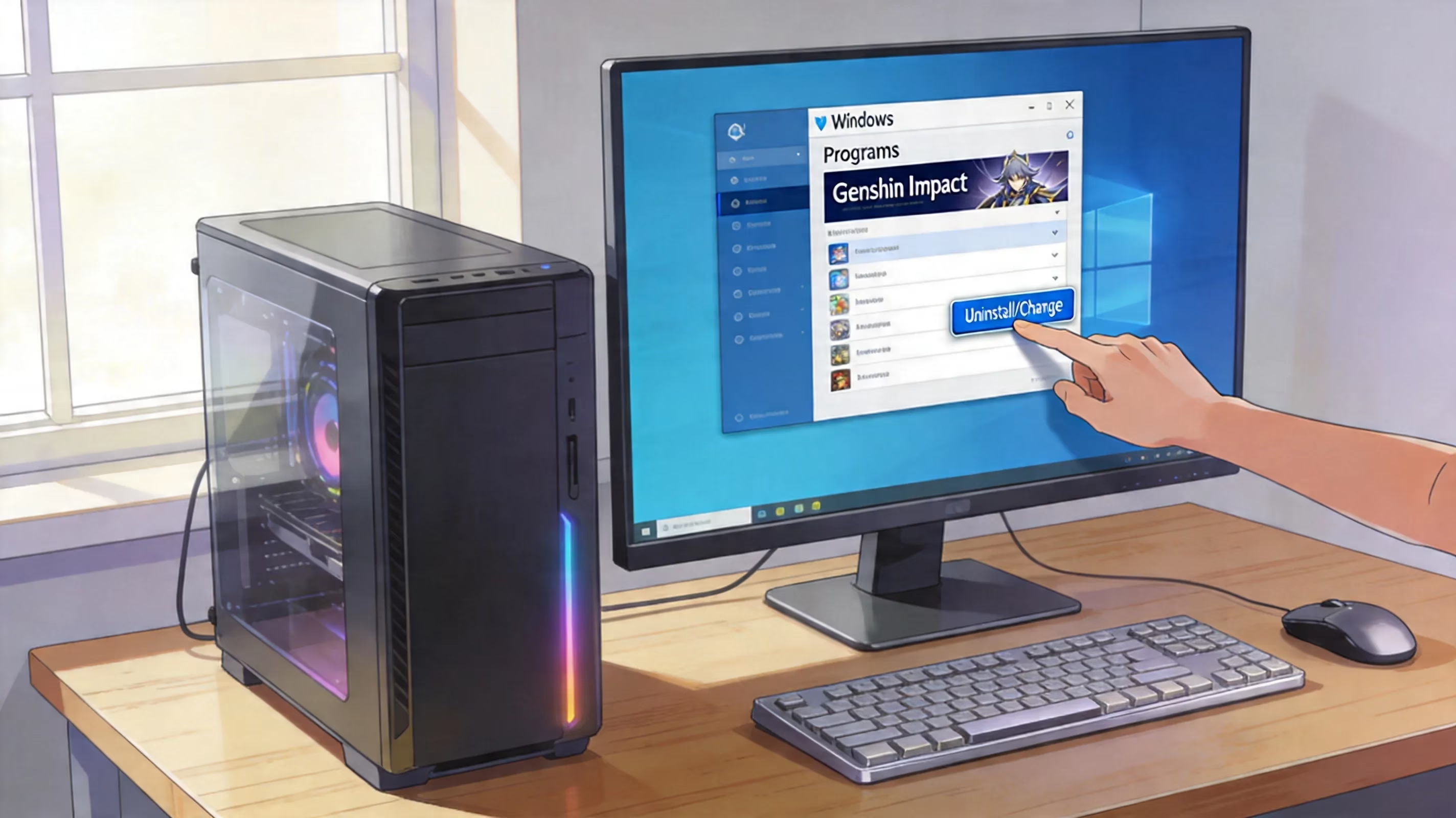
Using Windows Settings is a good fallback if the launcher is missing or broken. Go to Settings > Apps > Installed Apps, search for Genshin Impact, then hit Uninstall. This runs the game’s built-in uninstaller and removes the main install folder as well as desktop shortcuts.
Using the Epic Games Launcher is the right move if you originally installed the game through Epic. Open your library, right-click the Genshin Impact tile, and select Uninstall. That way Epic’s own records update properly, which helps avoid those annoying orphaned entries that still show up in your library afterward.
Genshin Impact Complete Removal
A normal uninstall on PC does not fully clean the system. If you want a true fresh start, you’ll need to remove the leftovers manually.
The biggest one is usually AppData. Go to C:\Users\[Username]\AppData\Local\ and look for folders named HoYoverse or miHoYo, depending on when the game was installed. Inside, the Genshin Impact-related folders can include shader cache, login tokens, launcher settings, and other temporary data that may add up to several gigabytes. Deleting the full HoYoverse folder clears that out, but only do this if you’ve already removed the launcher or you’re not using it for other HoYoverse games like Honkai: Star Rail or Zenless Zone Zero.
If you only want to clear shader data, that’s usually found at C:\Users\[Username]\AppData\Local\GenshinImpact\shader_cache. You can delete just that folder if your goal is cache cleanup rather than a full wipe. For complete removal, though, it makes more sense to remove the entire GenshinImpact AppData folder.
Registry cleanup is optional, and honestly, it’s only worth doing if you really want the system completely residue-free. Open Registry Editor with Win + R > regedit, then check HKEY_LOCAL_MACHINE\SOFTWARE\HoYoverse and HKEY_CURRENT_USER\SOFTWARE\HoYoverse for leftover keys. If you remove anything there, make sure it belongs only to Genshin Impact or the HoYoverse Launcher. Backing up the registry first through File > Export is strongly recommended. A bad registry deletion can cause bigger problems than a few leftover entries, so this step is best left to users who are comfortable working in regedit.
How to Uninstall Genshin Impact on Mobile
On mobile, uninstalling Genshin Impact is much simpler than on PC, though iPhone and Android still handle things a little differently.
On iPhone and iPad, you can long-press the Genshin Impact icon from the Home Screen or App Library, tap Remove App, then choose Delete App and confirm. You can also go through Settings > General > iPhone Storage, find Genshin Impact, and tap Delete App there. iOS also includes an Offload App option in that same menu. Offloading removes the app itself and clears cache while keeping documents and app-related local data. Since your actual game progress lives on HoYoverse’s servers, most players won’t notice much difference, but Offload is handy if you just need temporary space and plan to reinstall on the same device soon.
On Android, the cleanest method is usually through the Google Play Store. Open the Genshin Impact store page and tap Uninstall. You can also remove it through Settings > Apps > Genshin Impact > Uninstall, which does the same thing at the system level. Afterward, some Android devices still keep residual cache data around. If the app entry remains visible in Settings > Apps, go back in and clear any remaining storage to finish the job properly.
Mobile Storage Cleanup
Even after uninstalling, Android can sometimes hang onto temporary voice pack fragments or shader-related cache files. In a lot of cases, the system clears these on its own after a while, but if you want the storage back immediately, head to Settings > Storage > Cached Data and clear cached app data system-wide. Just keep in mind that this affects all apps, not only Genshin Impact, so it’s usually better as part of a broader cleanup session.
On iOS, things are cleaner. Reinstalling through the App Store and logging back into your linked HoYoverse account restores your account state automatically, so there’s no need for a local backup before deleting the app. One thing worth remembering, though, is that any extra voice language packs you downloaded will need to be selected and downloaded again after reinstalling. If you’re planning to come back later, keeping only the voice language you actually use — English, Japanese, Chinese, or Korean — can make the reinstall footprint a lot more manageable.
How to Uninstall Genshin Impact on PlayStation
PlayStation is easily the most straightforward platform for this. On both PS4 and PS5, the process is almost identical thanks to how similar the PlayStation OS flow is in 2026.
On PS4, go to the home screen, highlight the Genshin Impact tile, press the Options button on your DualShock 4, choose Delete from the side menu, and confirm with OK. That removes the game application and any downloaded content packs, including separate language audio files.
On PS5, it works pretty much the same way. Highlight the game tile on the home screen, press the Options button on the DualSense controller, and select Delete. You can also do it through the Game Library by finding Genshin Impact under Installed Games, pressing Options, and selecting Delete there.
The one thing players sometimes worry about is save data. On both PS4 and PS5, deleting the game does not automatically remove local save data. In Genshin Impact’s case, that matters less than it does in most games because your real progression — builds, inventory, quest progress, Spiral Abyss history, and so on — is stored on HoYoverse’s servers. If you have PlayStation Plus, you can still check that cloud saves are synced before uninstalling by going to Settings > Saved Data and Game/App Settings > Saved Data (PS5) or Settings > Application Saved Data Management > Saved Data in Online Storage (PS4). If you want a completely clean setup, local save data can be deleted separately from those same storage menus afterward.
Genshin Impact Uninstall Problems
Sometimes the uninstall goes smoothly. Sometimes Windows decides it absolutely does not want to cooperate.
The most common issue is a launcher or game process still running in the background. If files are locked, the uninstall will usually fail or hang. Open Task Manager with Ctrl + Shift + Esc, go to the Details tab, and look for anything like GenshinImpact.exe, launcher.exe, or other HoYoverse-related processes. End those tasks, then try the uninstall again. That fixes most cases right away.
Administrator permission errors can also get in the way, especially if the game was installed under another Windows account or placed in a protected folder. Right-click the uninstaller or the game folder and choose Run as Administrator. If it’s still being stubborn, boot into Safe Mode using Win + R > msconfig > Boot tab > Safe boot (Network), restart the PC, and uninstall from there. Safe Mode cuts out a lot of background interference, including third-party services and overactive antivirus hooks.
A corrupted installation is a different problem. If the normal uninstaller won’t launch at all, you can go straight to the game directory and delete the folder manually. Pair that with the AppData cleanup mentioned earlier, and you’ll still remove the full install even without the official uninstaller working. After that, running Windows Disk Cleanup through Settings > System > Storage > Temporary Files can help recover fragmented patch files or leftover temporary data.
Antivirus software can occasionally interfere too, especially around HoYoverse’s anti-cheat components during removal. If that happens, temporarily disabling real-time protection before uninstalling and turning it back on immediately afterward usually gets around the false positive without creating any meaningful security risk.
Conclusion
If you want the cleanest way to uninstall Genshin Impact, the best method depends on your platform, but the goal is the same: remove the game and actually get the storage back. On PC, the ideal route is to use the HoYoverse Launcher’s uninstall option first, then clear AppData leftovers for a proper full removal. On mobile, the built-in iOS and Android uninstall tools handle most of the work, with Android sometimes needing an extra cache cleanup step. PlayStation players have it easiest, since deleting the app is quick and your server-side progress stays untouched.
If you’re uninstalling for a clean reinstall rather than quitting outright, these same steps are still the right call. Wiping old cache, shader files, and leftover launcher data can genuinely help with stutter, weird loading behavior, and long-term install corruption. On PC, a full cleanup usually gives back around 55 to 80 GB once launcher residue and patch buildup are included, while mobile players typically recover somewhere between 15 and 25 GB. And if you end up coming back later, just log in with your linked HoYoverse account and everything will be waiting for you right where you left it. See you in Teyvat.
Comments